


Country Management#
Viewing National Platforms#
On the navigation bar, click
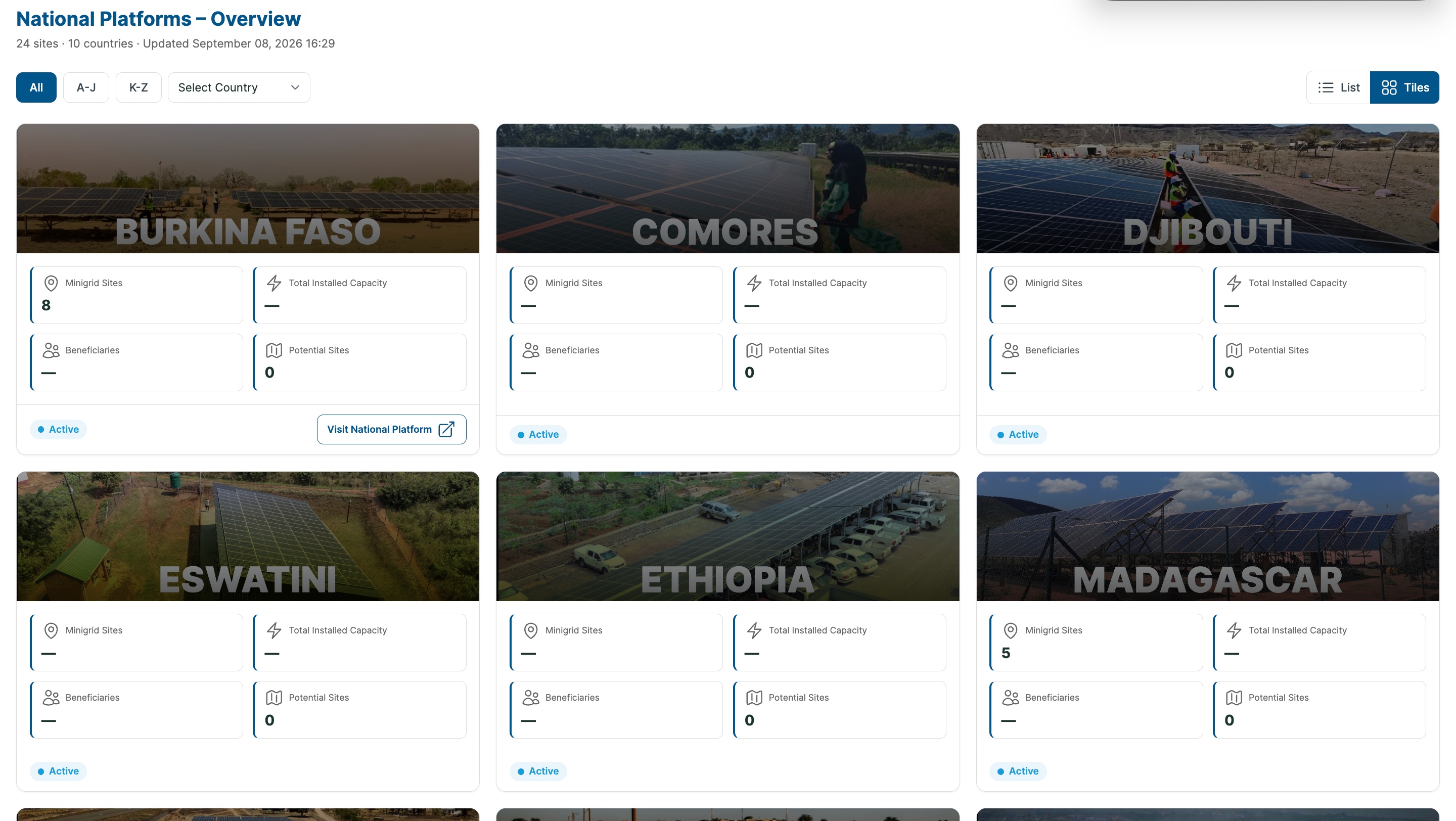
National Platformsto open the national platforms page.

All the registered national platforms will be displayed on the page.
Hint
You can visit the respective platforms by clicking Visit National Platform on the country card.
Viewing Country Configurations (Admin Only)#
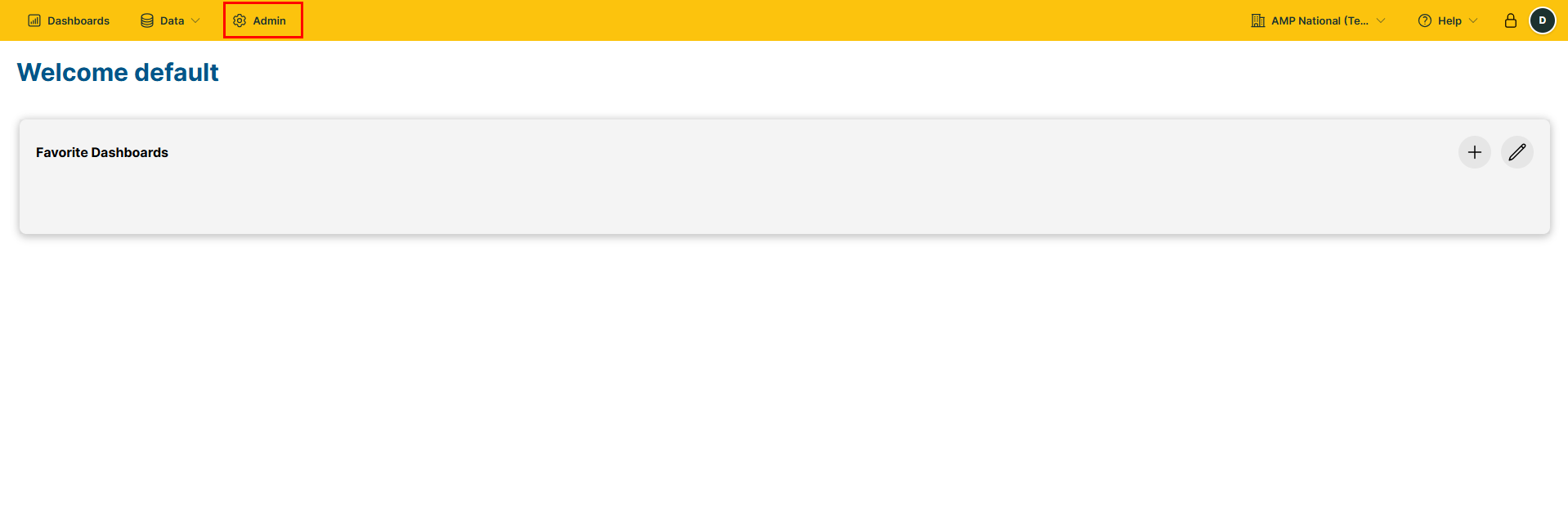
On the home page, click
Adminto open the admin panel.
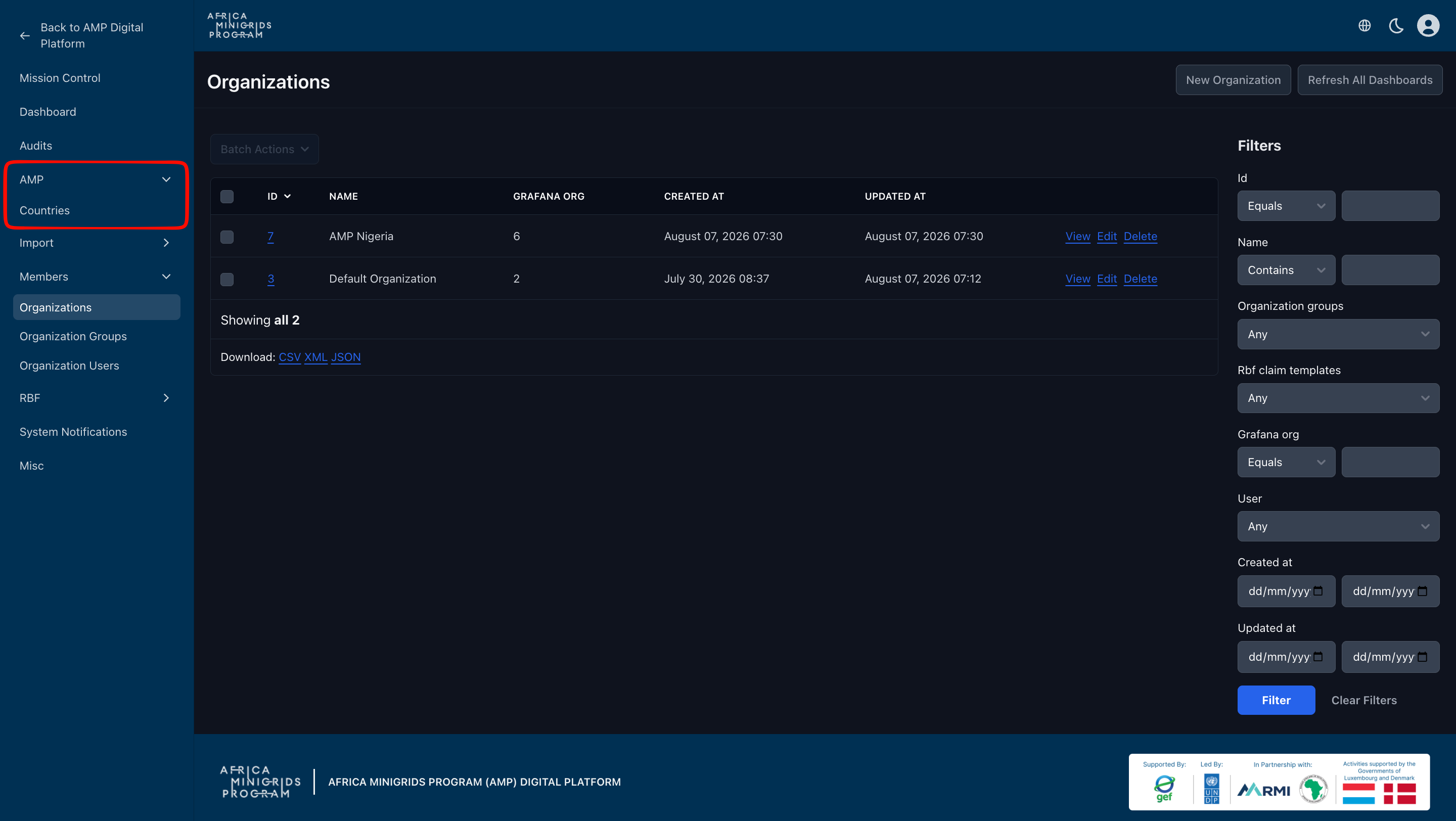
On the left side menu, click
AMPand selectCountries.
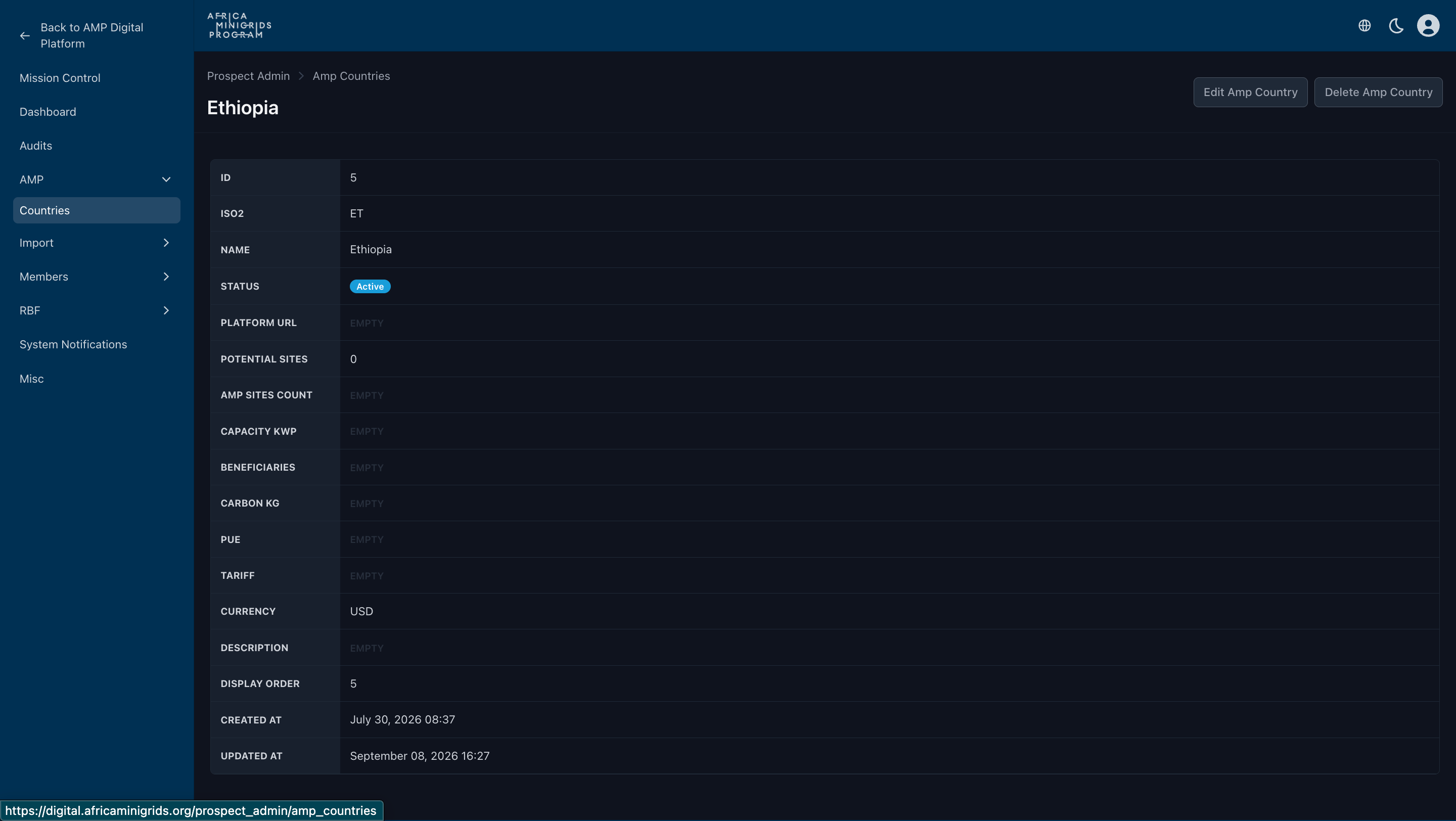
On the countries table, click the
IDof the country whose configurations you want to view.
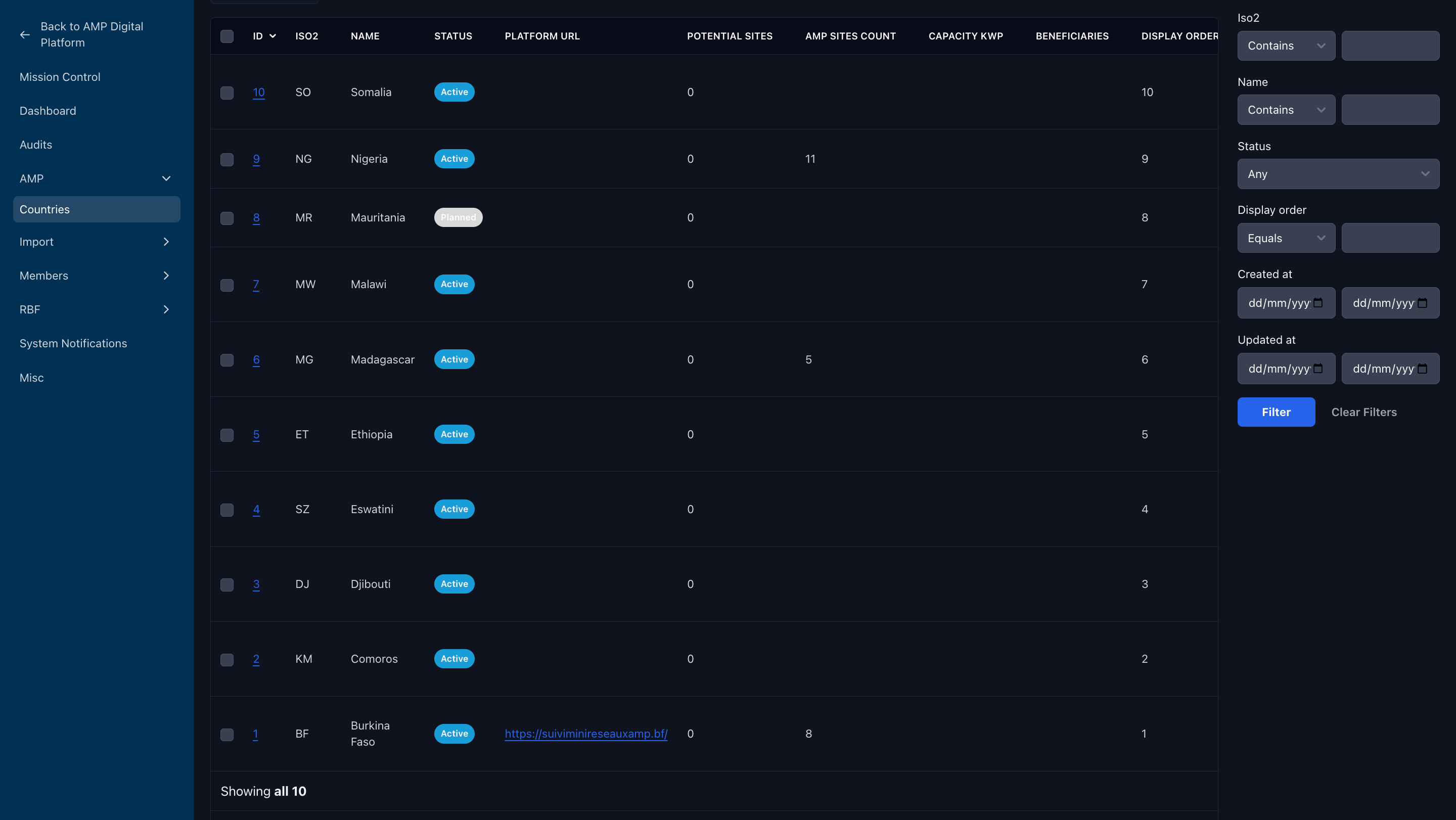
The country configurations will be displayed on the page.
Adding a New Country (Admin Only)#
On the home page, click
Adminto open the admin panel.
On the left side menu click
AMPand selectCountries.
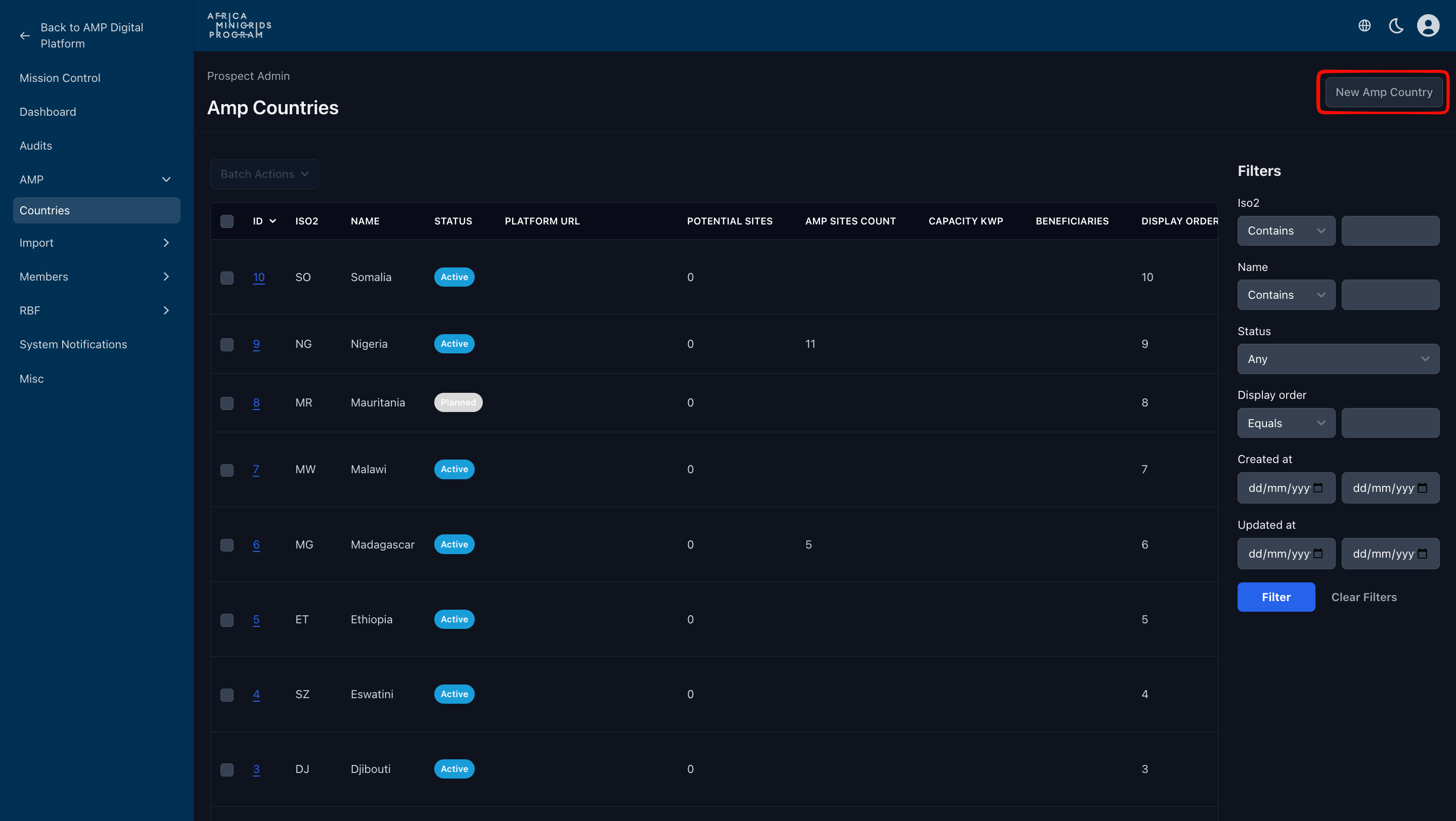
Click the
New AMP Countrybutton to open the new country form.
Hint
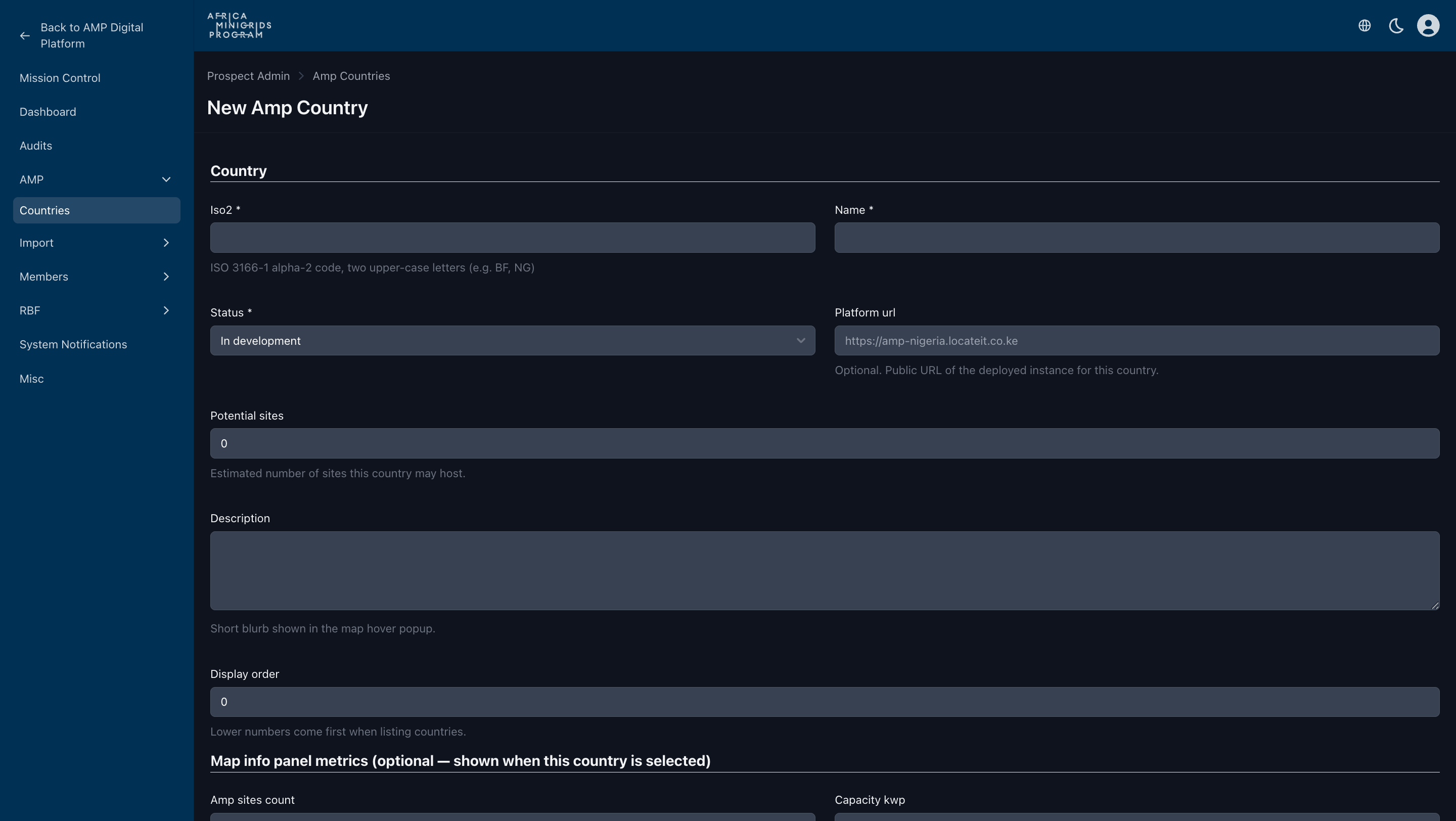
You can get the ISO 2 code of your country from the ISO 3166-1 alpha-2 page. Please ensure the code you enter into the platform is correct and matches the ISO 3166-1 alpha-2 code of your country. Make sure it is all caps.
Fill in the form with all the required details and click
Create Country.
Editing a Country (Admin Only)#
On the home page, click
Adminto open the admin panel.
On the left side menu, click
AMPand selectCountries.
On the countries table, click the
IDof the country you want to edit.
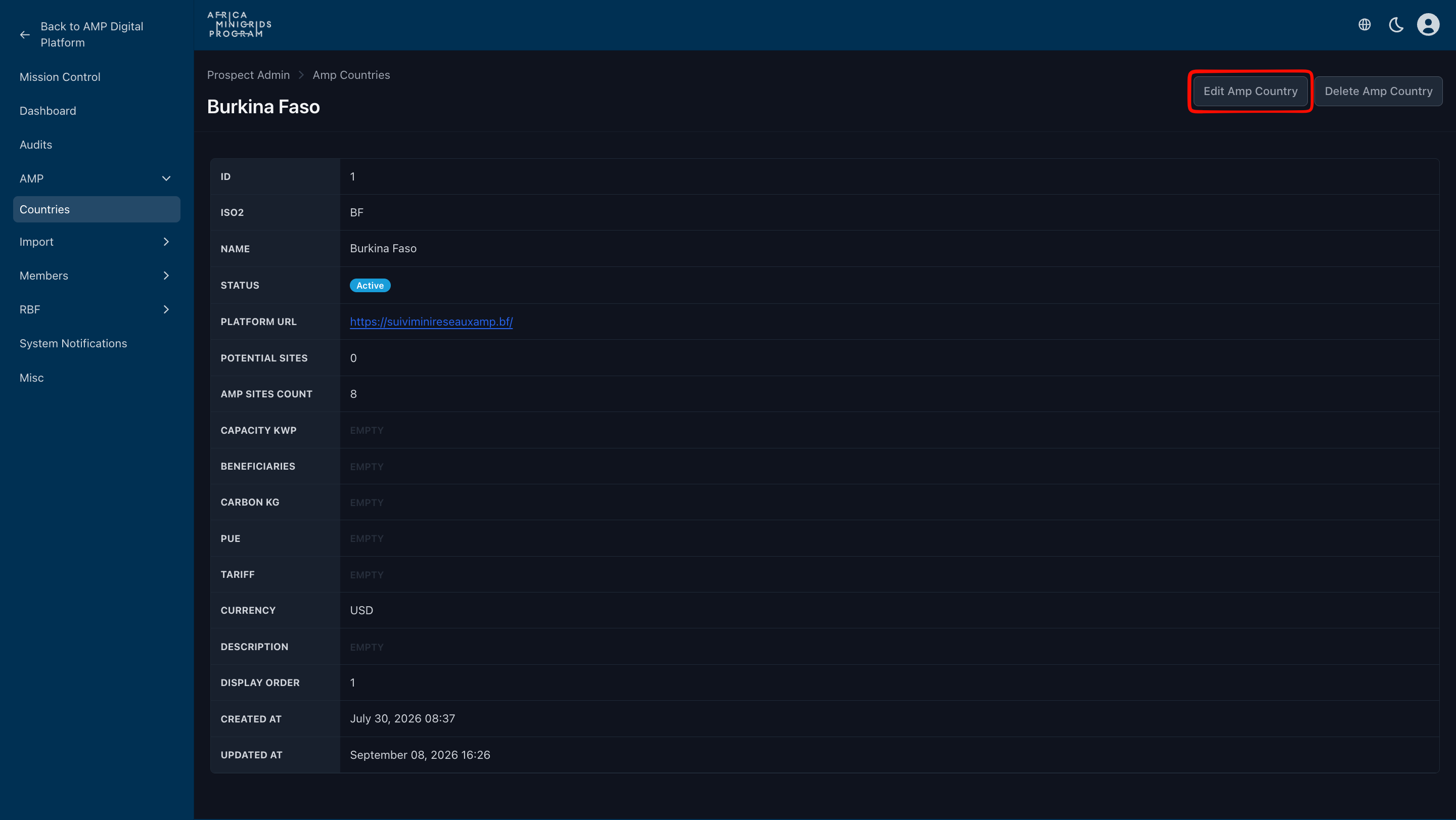
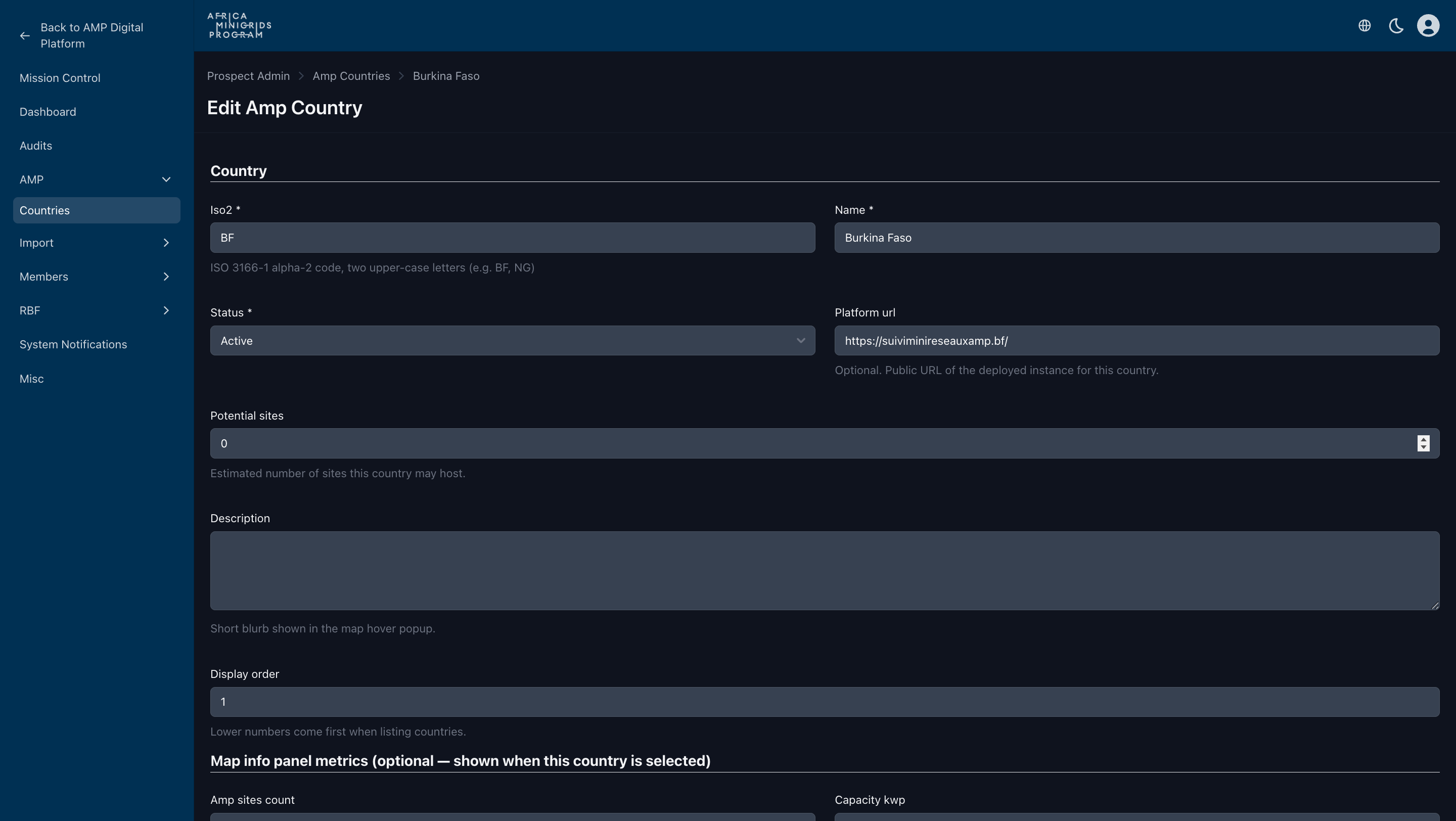
Click
Edit AMP Countryto open the edit country form.
Update the required details and click
Update Country.
Deleting a Country (Admin Only)#
On the home page, click
Adminto open the admin panel.
On the left side menu, click
AMPand selectCountries.
On the countries table, click the
IDof the country you want to delete.
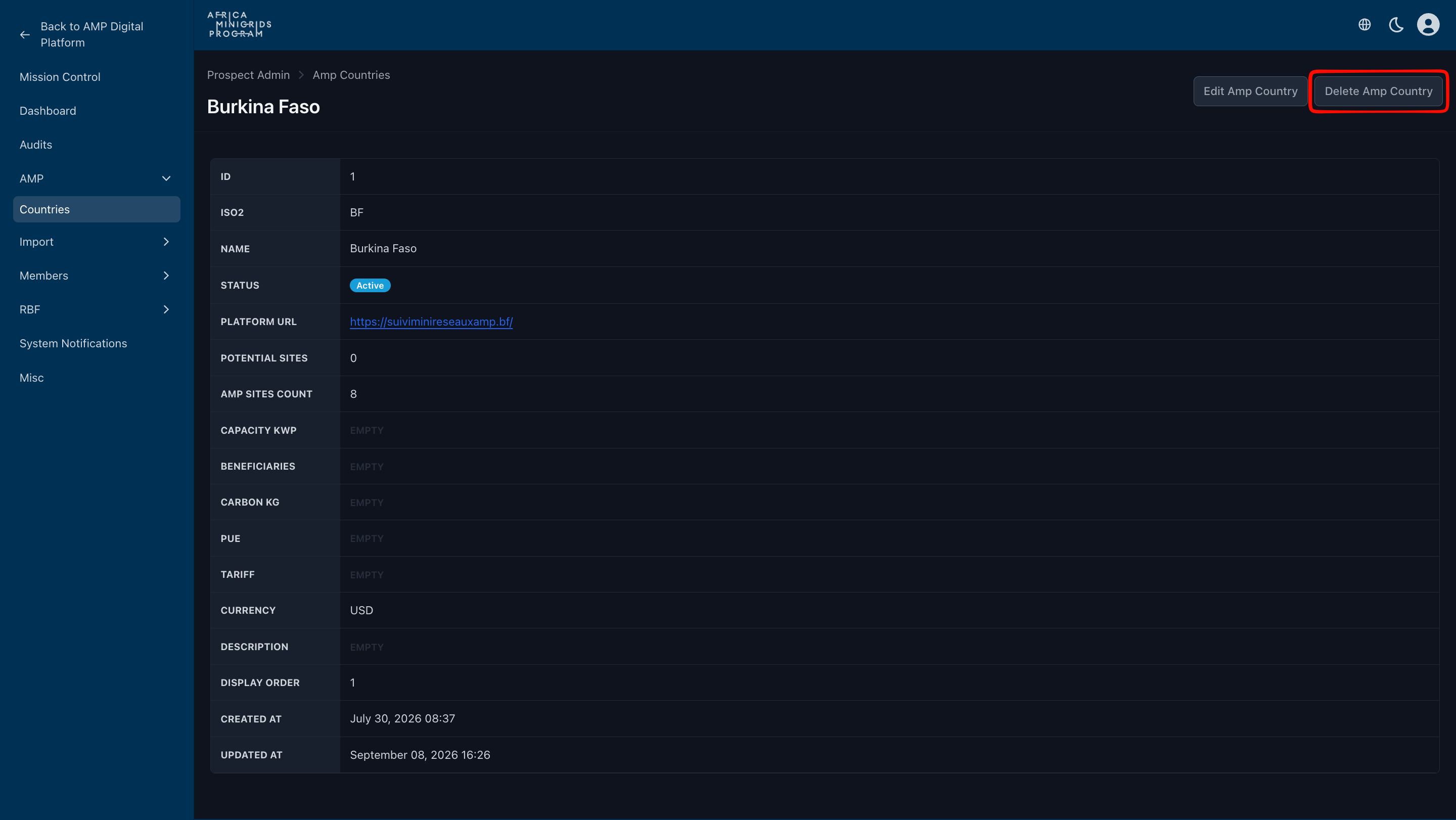
Click
Delete AMP Countryto delete the country.
Warning
Once a country is deleted, its details will be permanently removed and cannot be recovered. Please proceed with caution.