

Dashboards and Visualizations#
Viewing Dashboard#
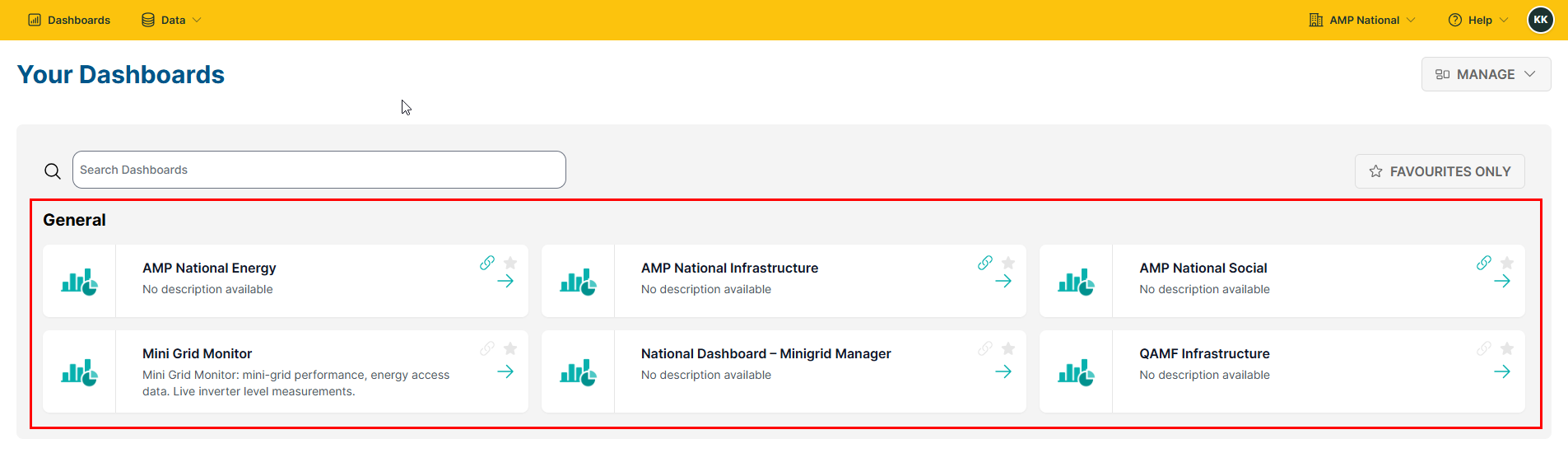
On the home page, click
Dashboardsto open the analytics page.

Select the dashboard that you wish to view.
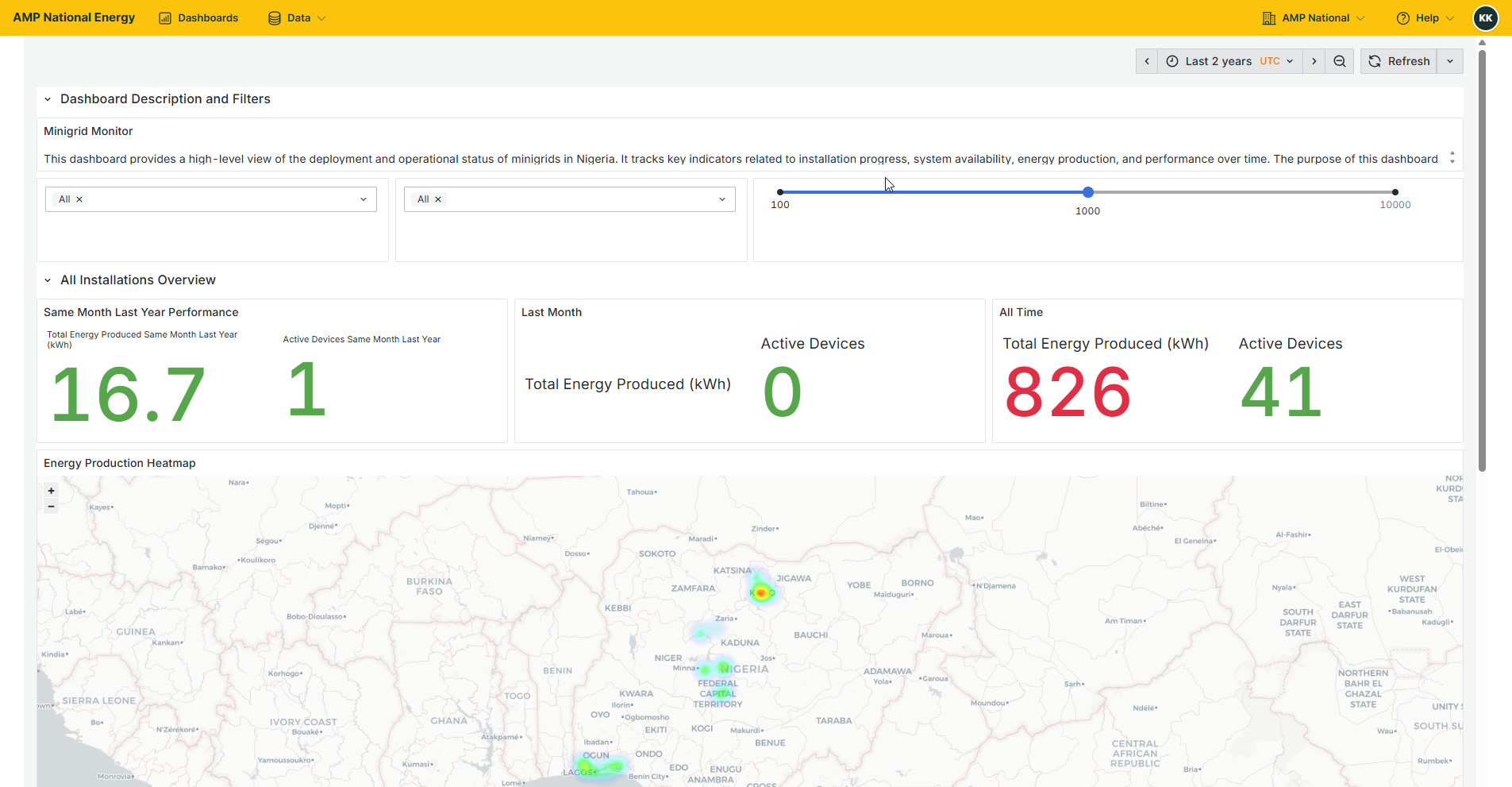
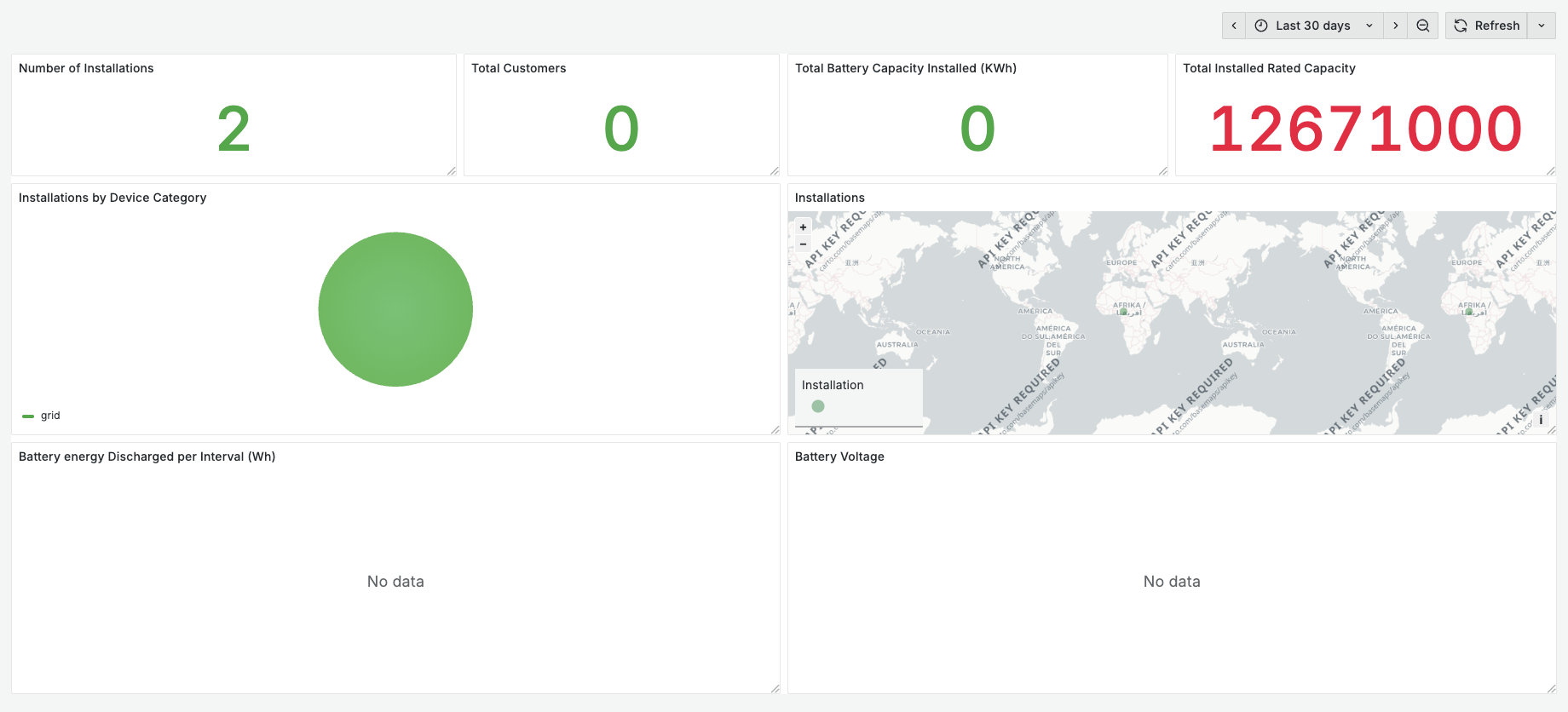
Your selected dashboard will be opened for you to view.
Creating a Dashboard#
On the homepage, click
Dashboardsto open the analytics page
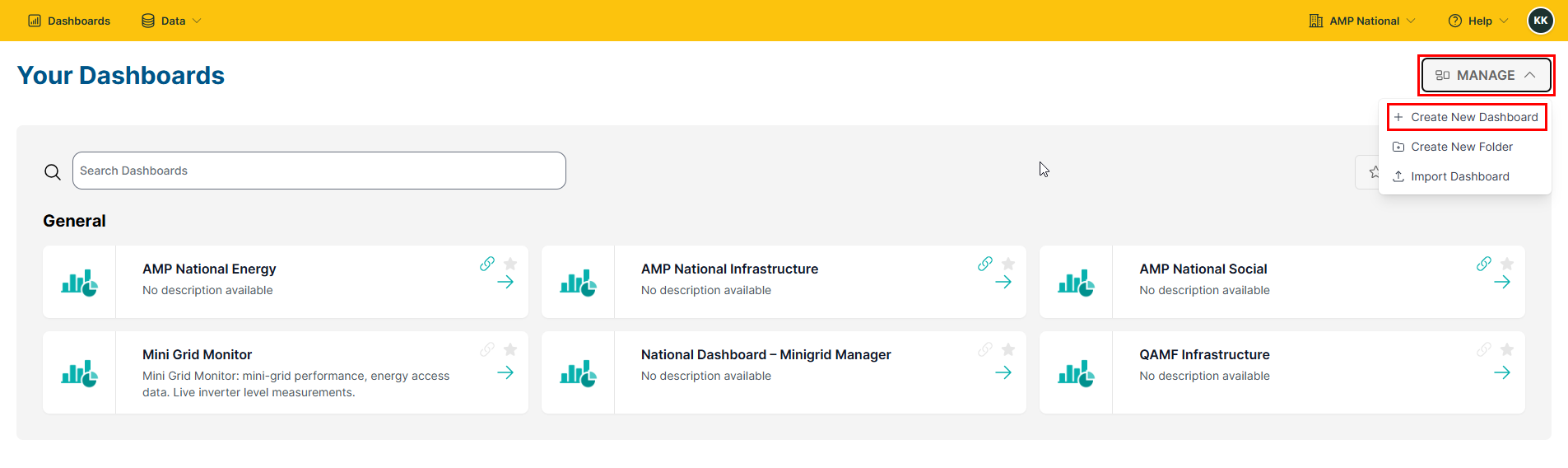
Click
MANAGEand select+ Create New Dashboard.
Click
Add Visualization
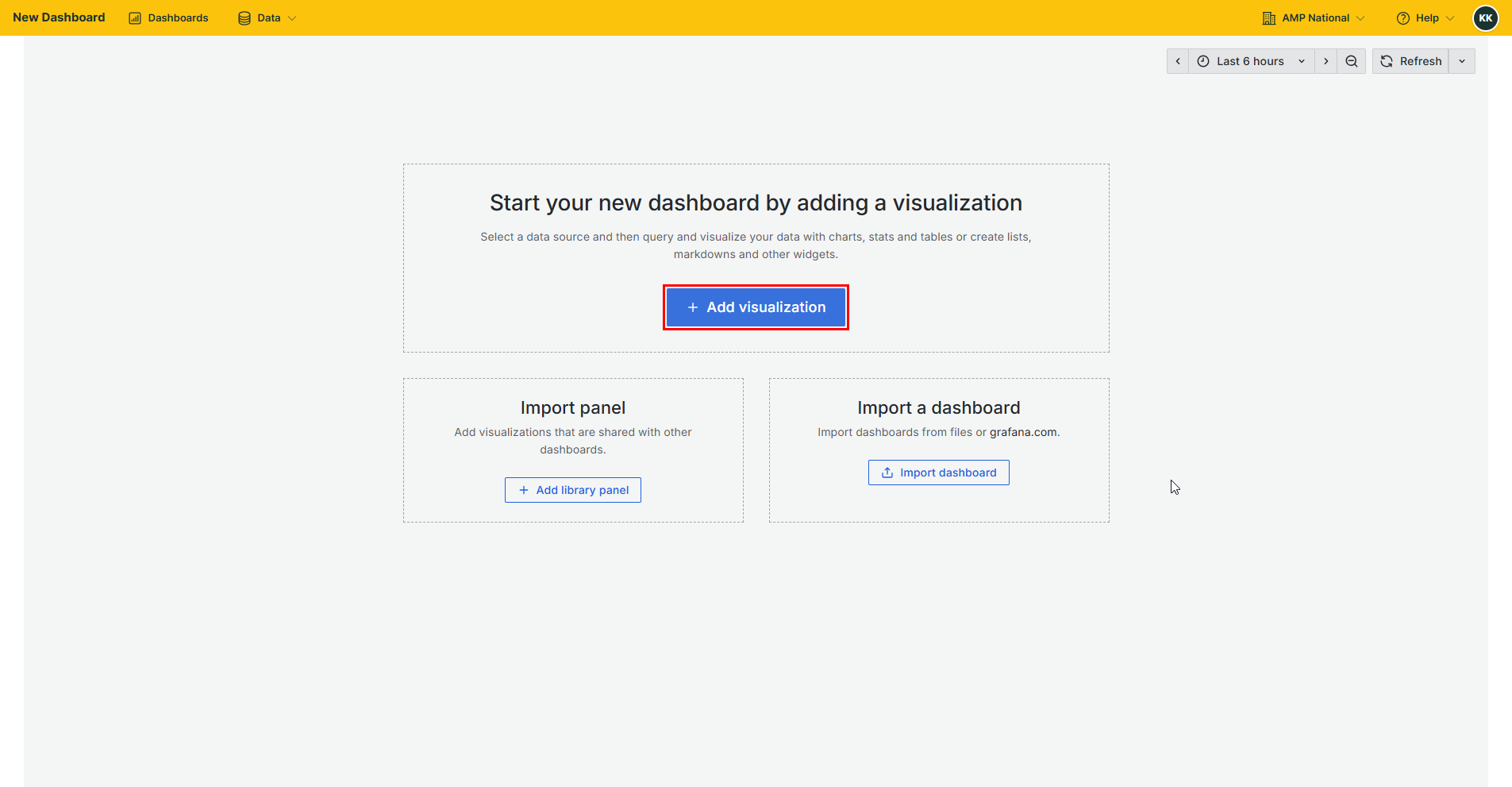
Select a data source.
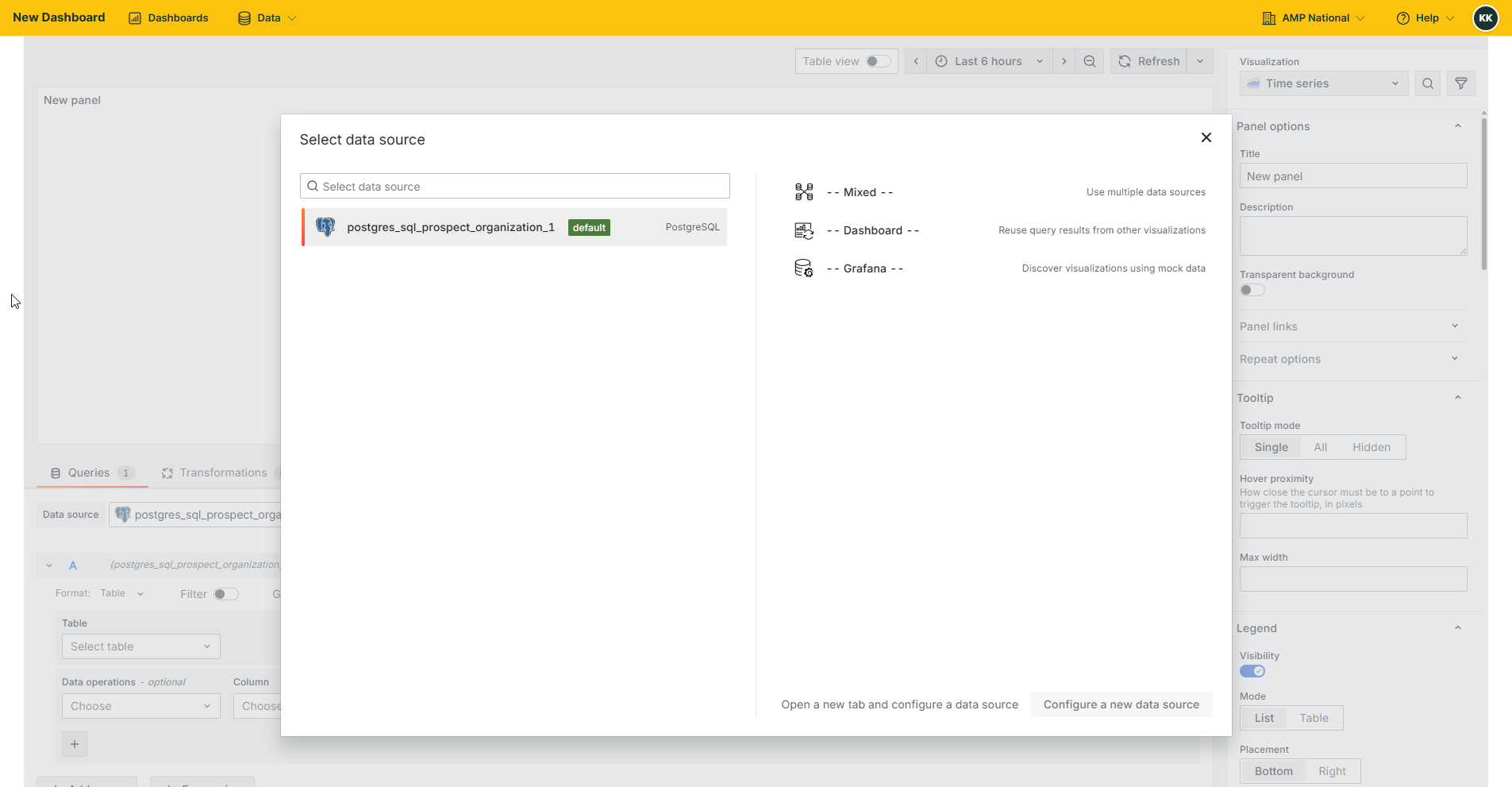
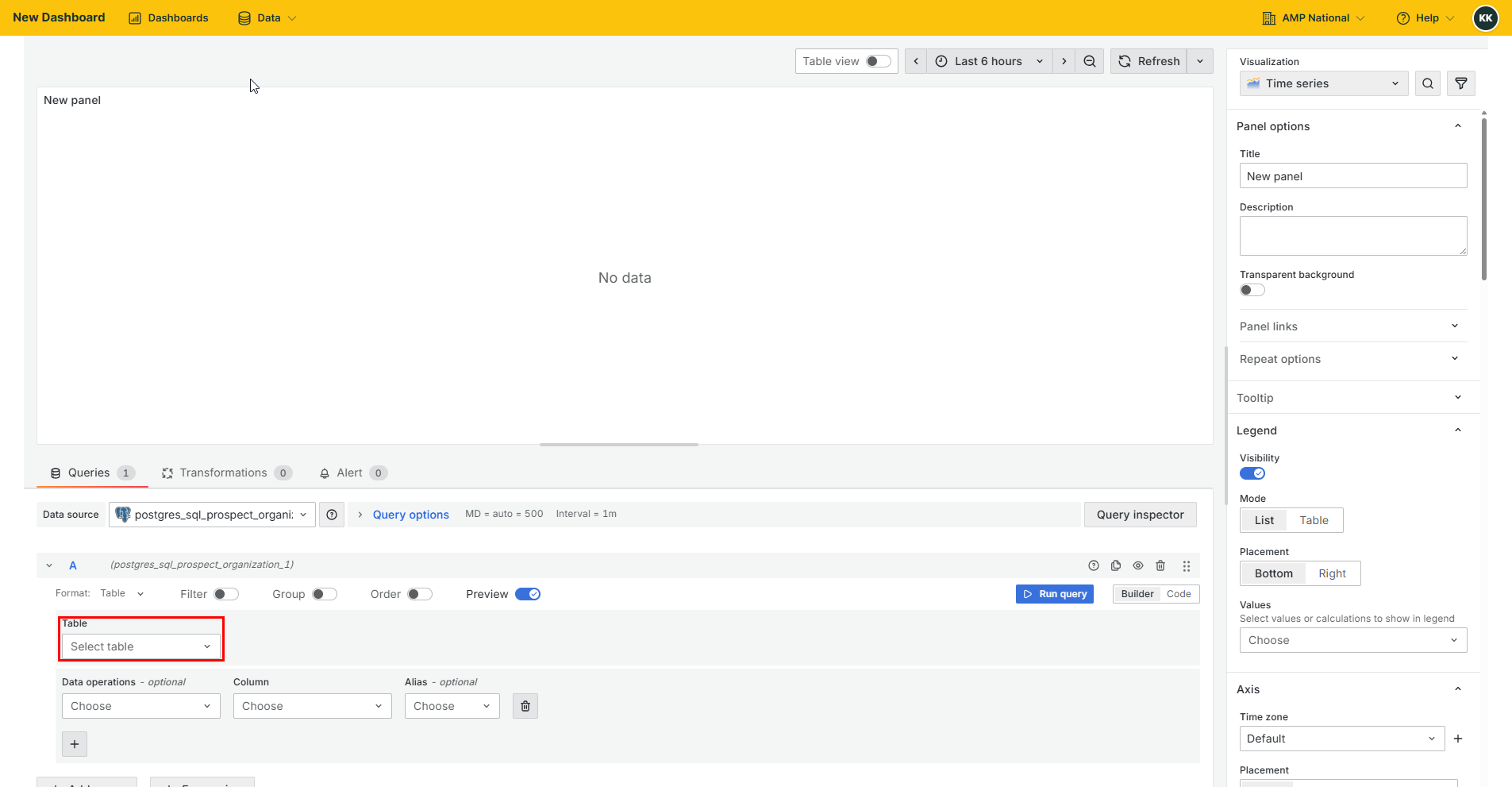
From the data source, select a table.
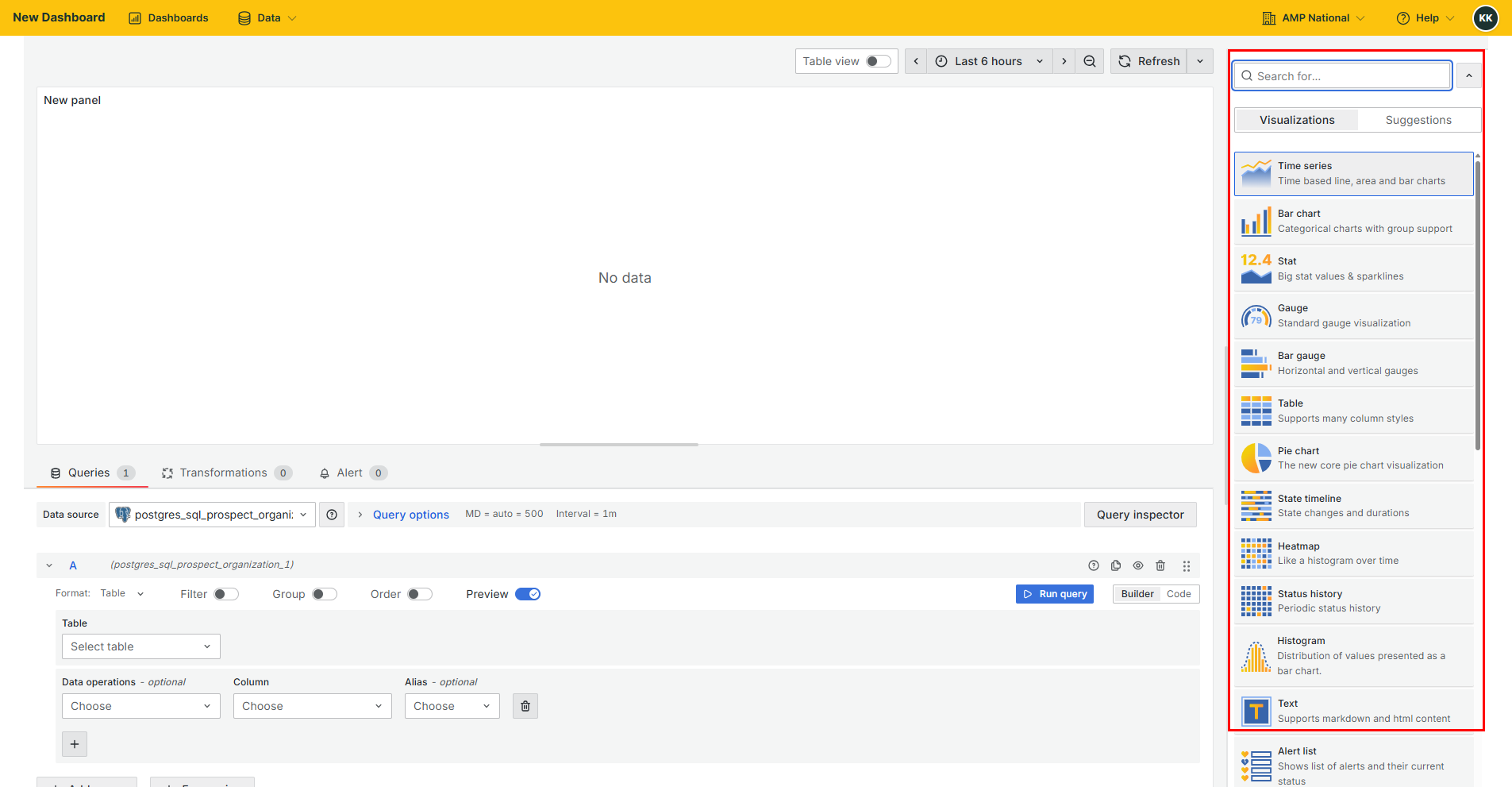
Select an appropriate visualization top be added as a panel to the dashboard.
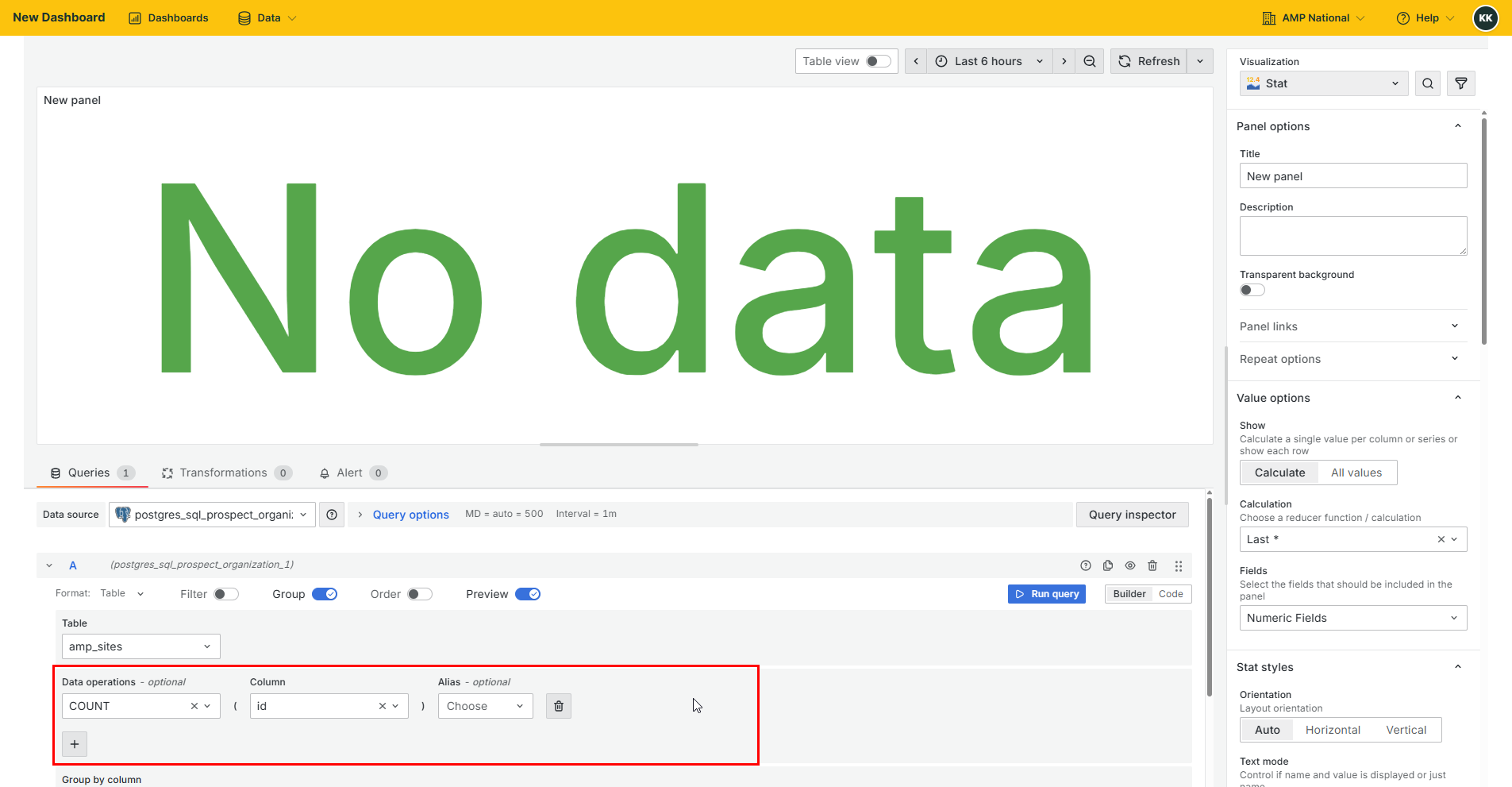
Perform the neccessary data operations for the selected visualization.
Note
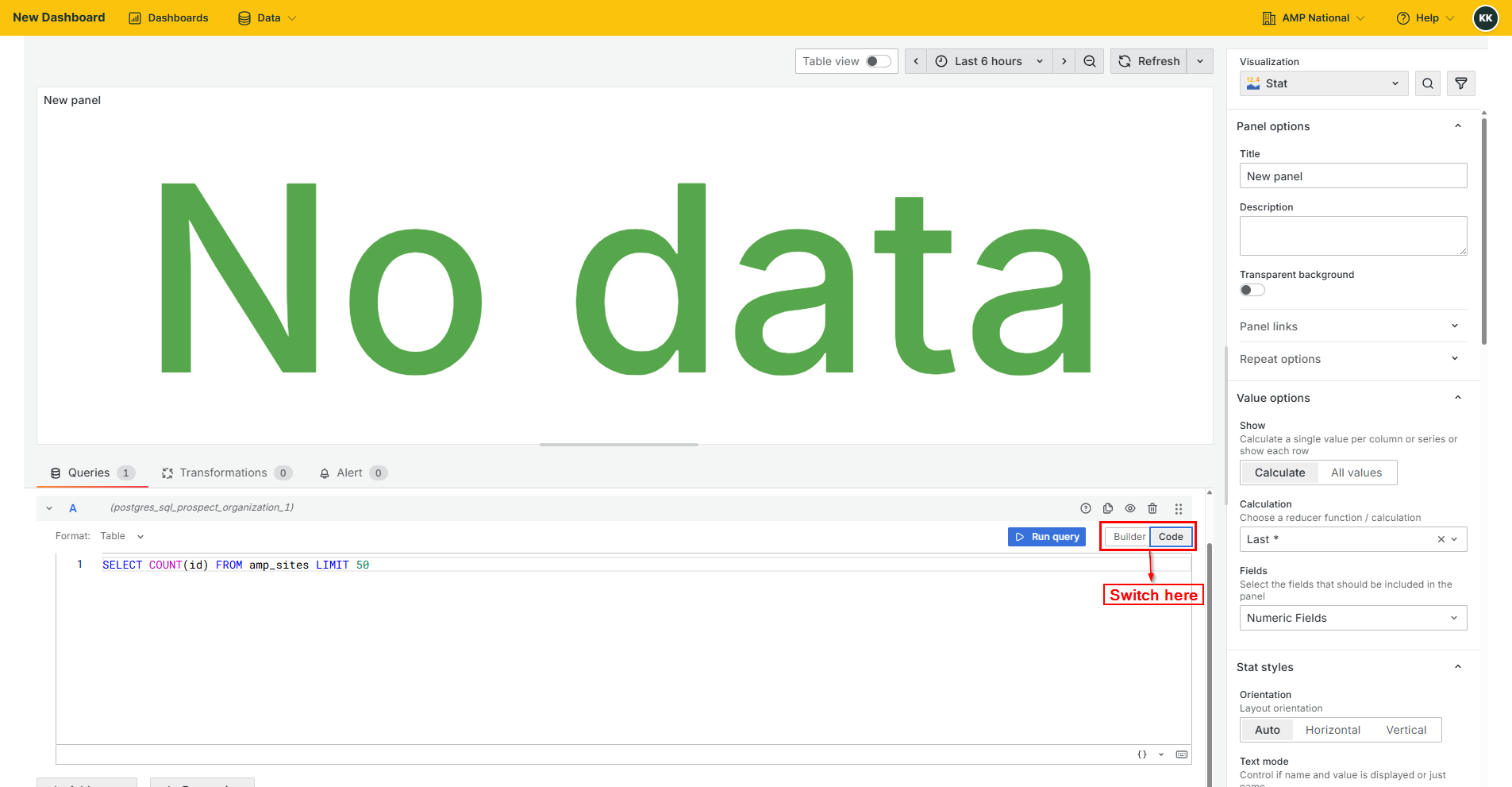
You can also write SQL code to perform the data operation by switching from Builder to Code.
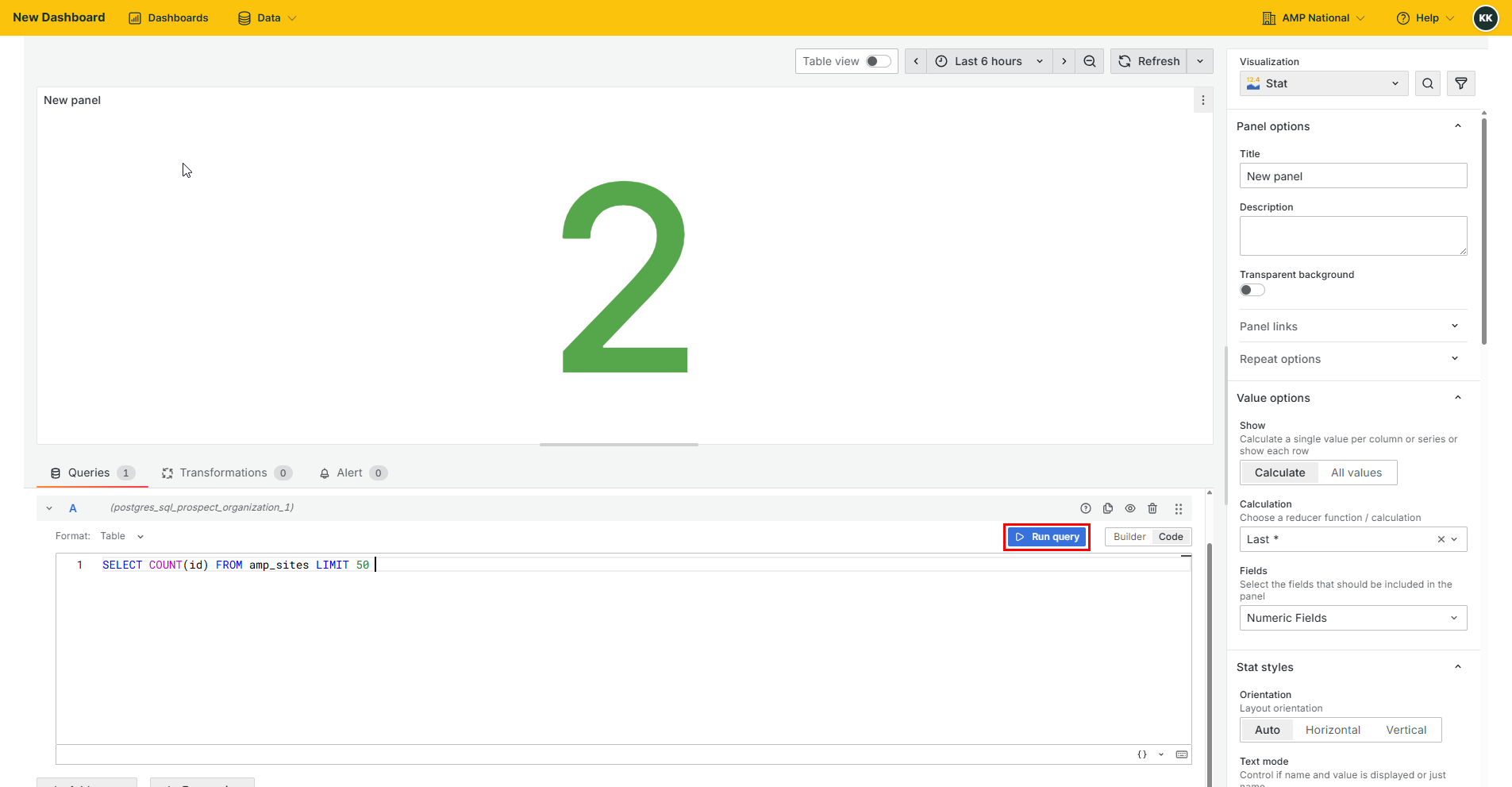
Click
Run Queryto create the visualization.
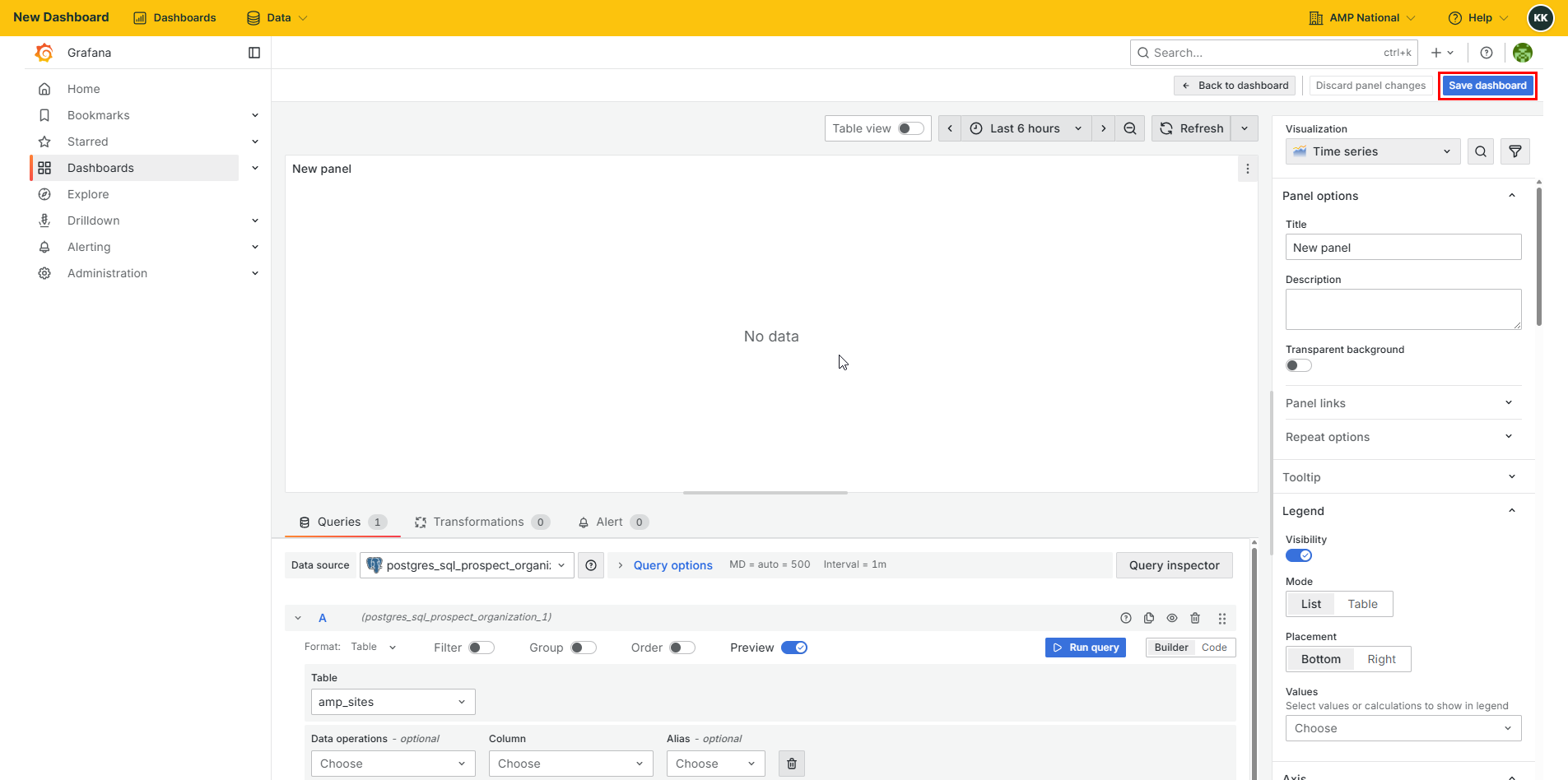
Click
Save dashboardto save the visualization.
Note
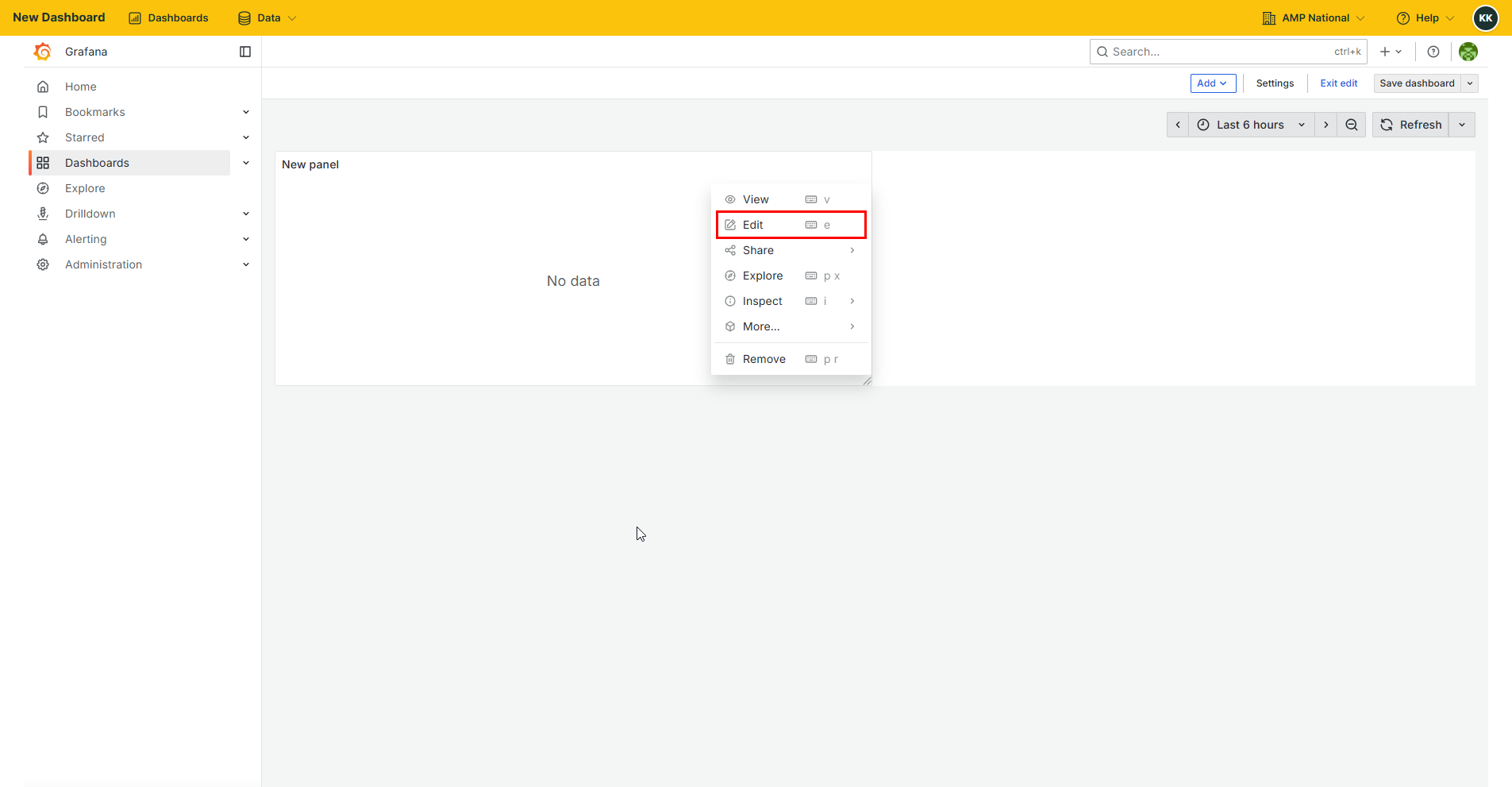
If the Save dashboard button is not visible, press the Esc or Escape button on your keyboard to show more dashboard controls. If you are redirected to a dashboard page, click the Esc button again, then click the menu button on the current visualization then select Edit to go back to editting the visualization
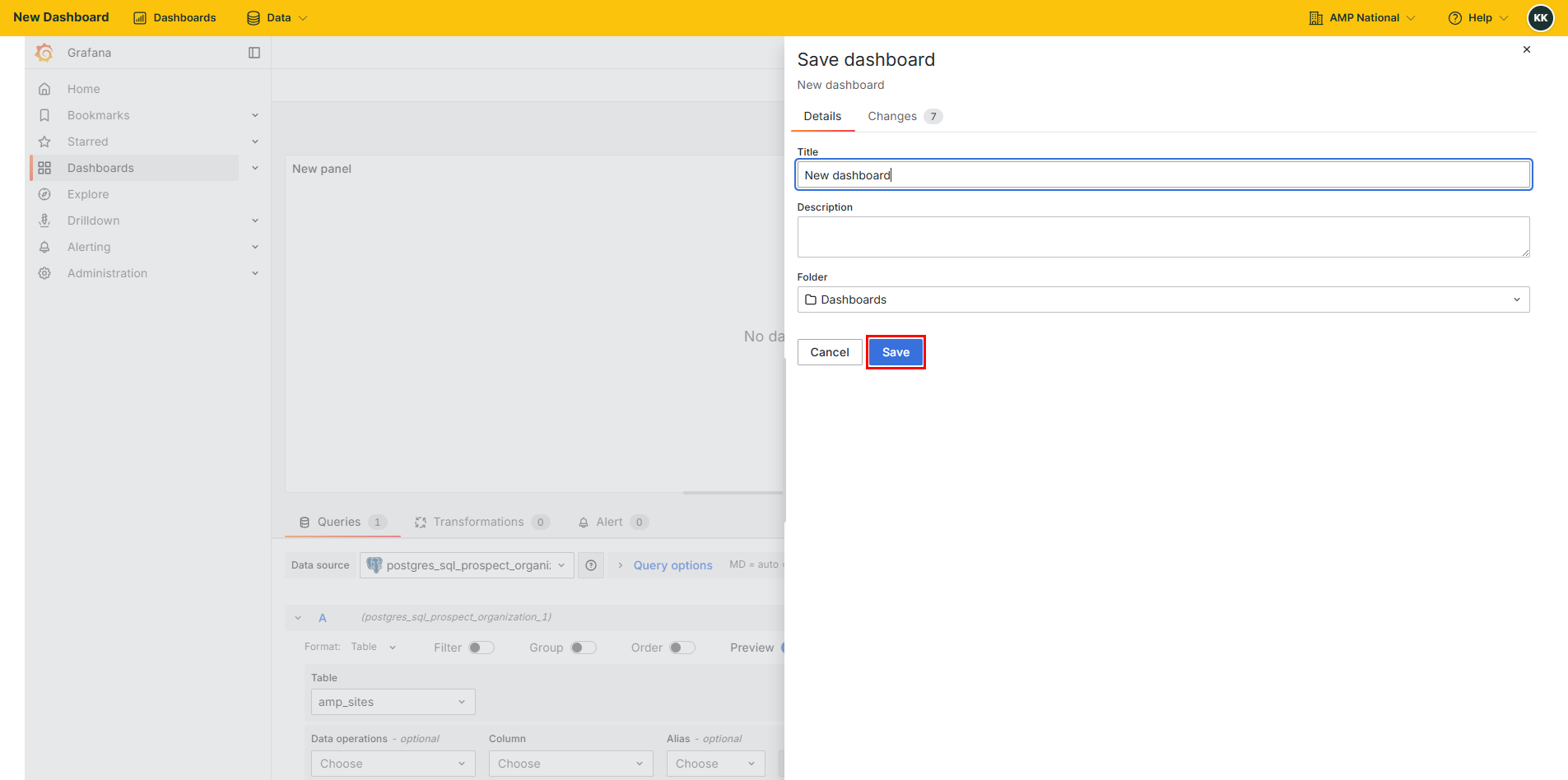
Provide the details of the dashboard that you are creating and click
Save.
Hint
A complete dashboard is made up of more than one visualization. To add a visualization, follow this procedure.
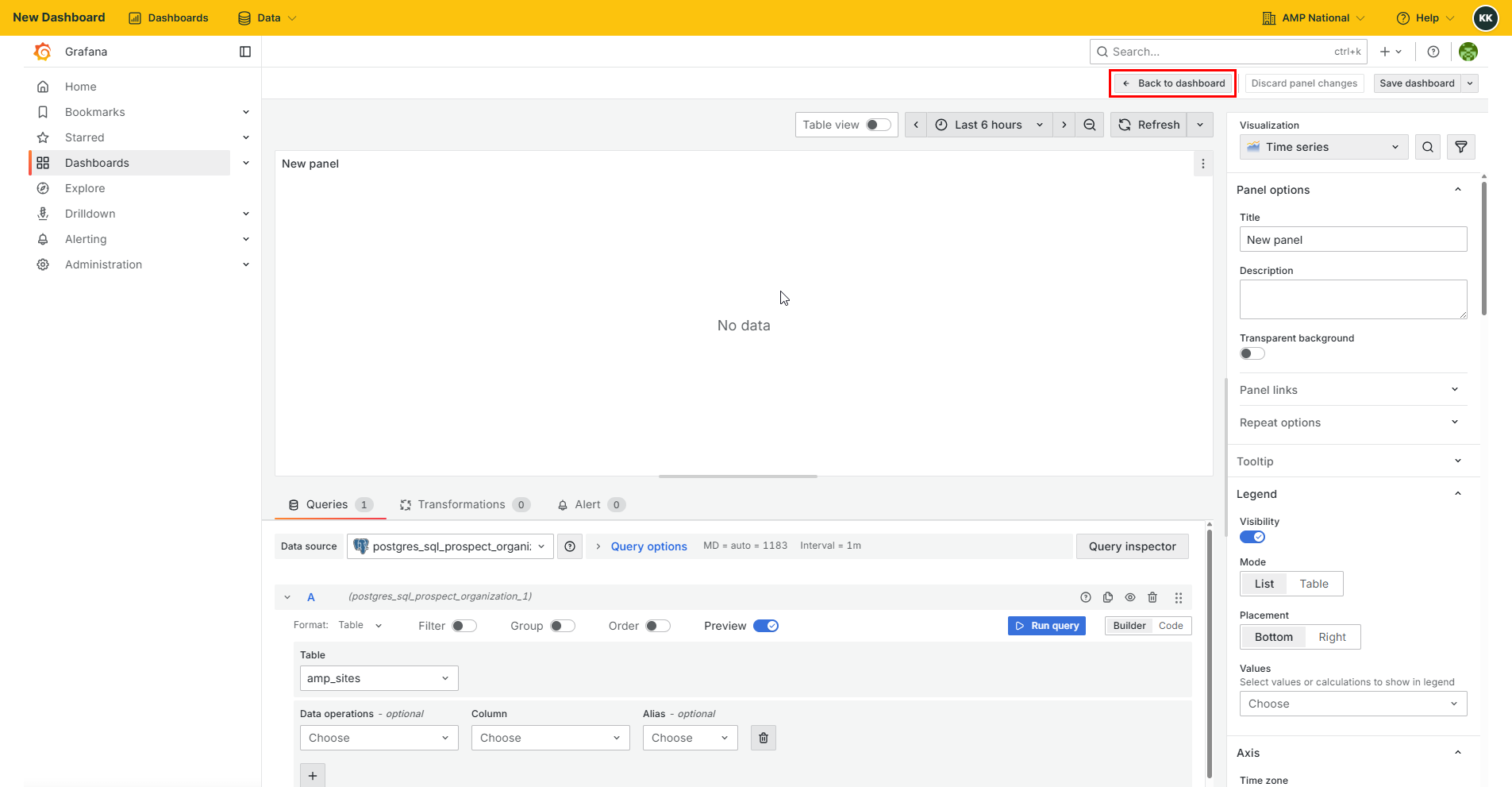
On the current visualization, click
Back to dashboard.
Note
If the Back to dashboard button is not visible, press the Esc or Escape button on your keyboard to show more dashboard controls.
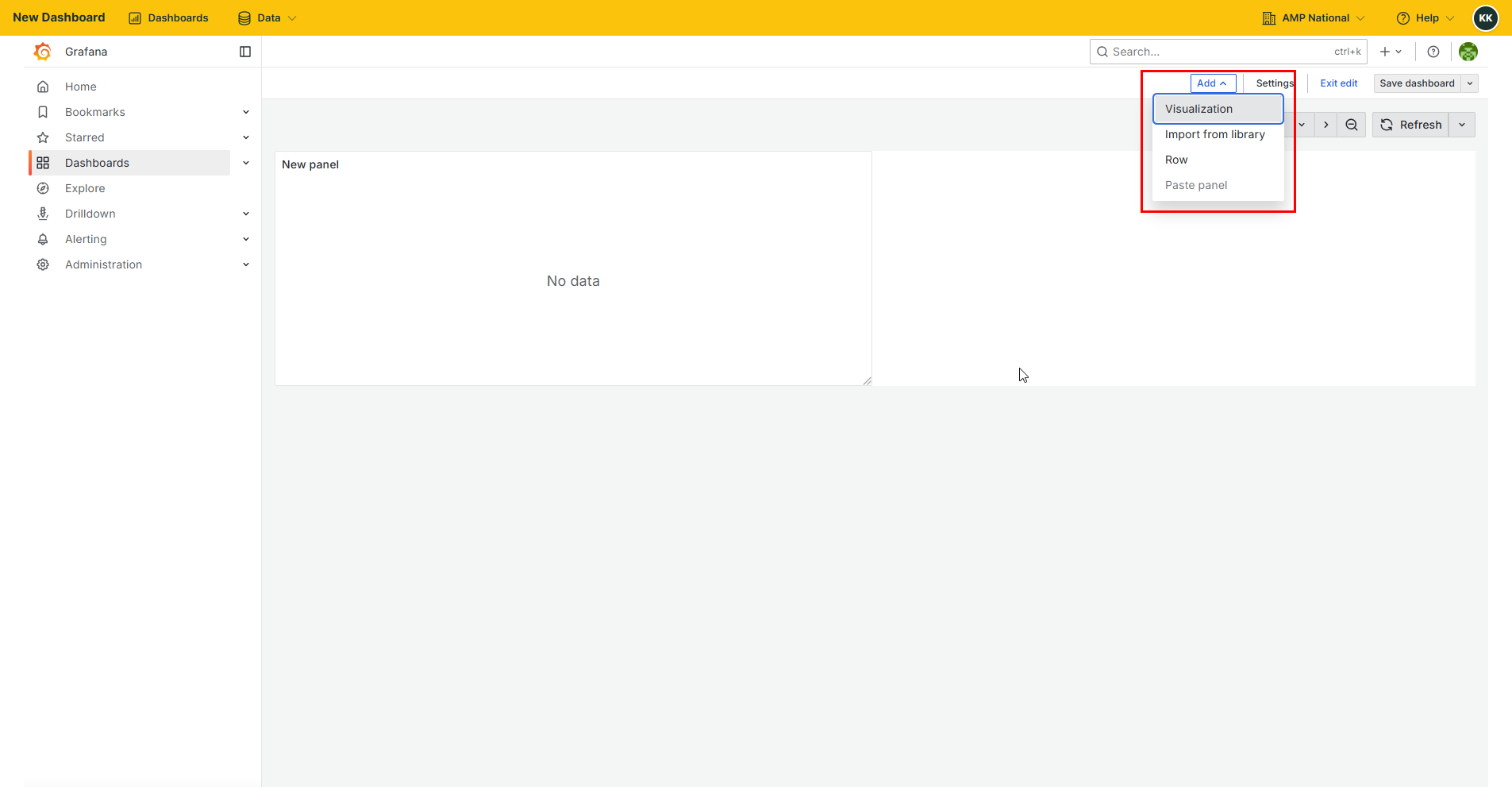
Click
Addand selectVisualization.
Repeat process 4 to 10.
You can add as many visualizations as required in the dashboard
Exporting a dashboard#
You can export a dashboard to be used on another grafana compatible platform.
On the homepage, click
Dashboardsto open the analytics page.
Select the dashboard the you wish to export.
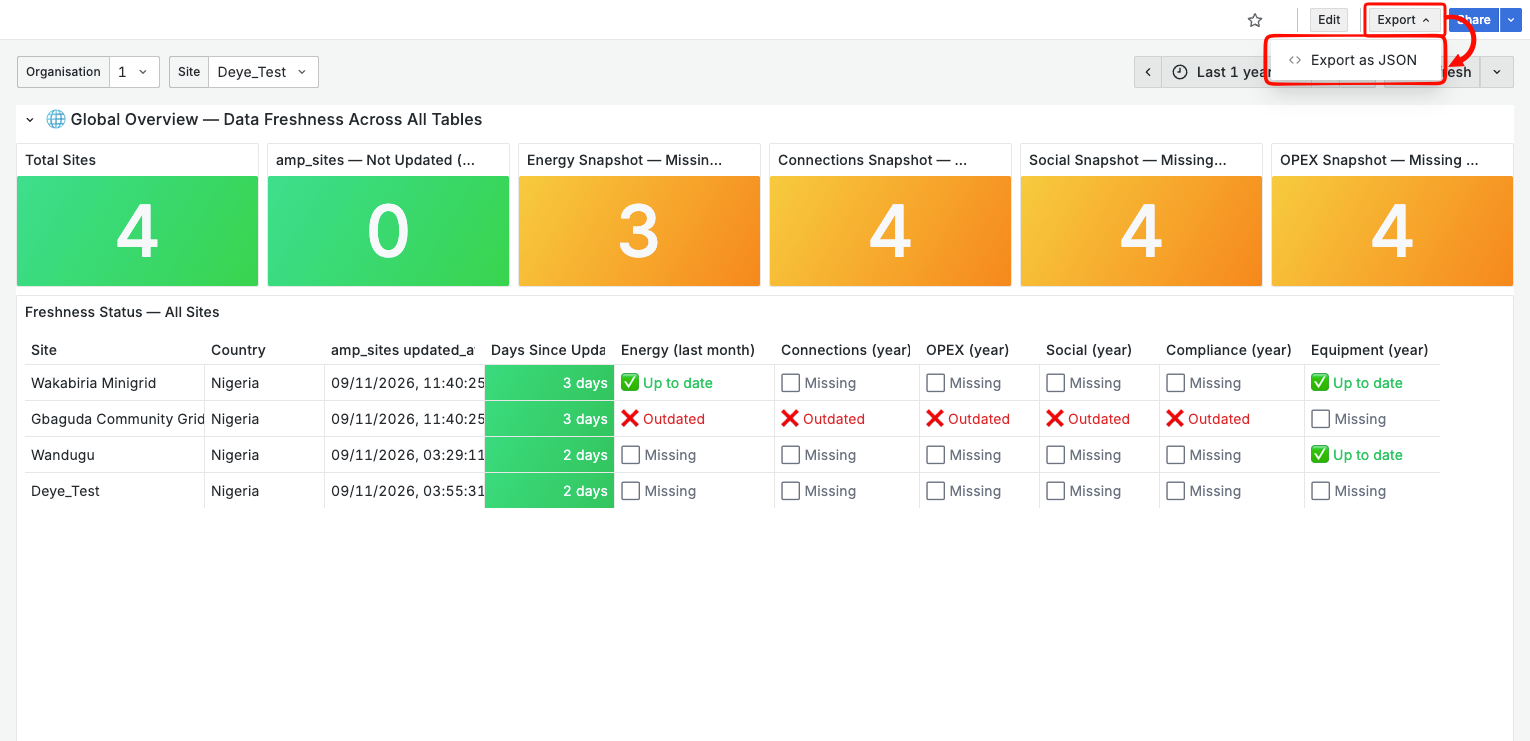
Click
Exportand selectExport JSONto export the dashboard.
Note
If the export button is not visible, press the Esc or Escape button on your keyboard to show more dashboard controls.
Importing a dashboard#
You can also import a dashboard that has been exported from another platform.
On the homepage, click
Dashboardsto open the analytics page.
Click
MANAGEand select+ Create New Dashboard.
Click
Import dashboardto open the import dashbaord form.
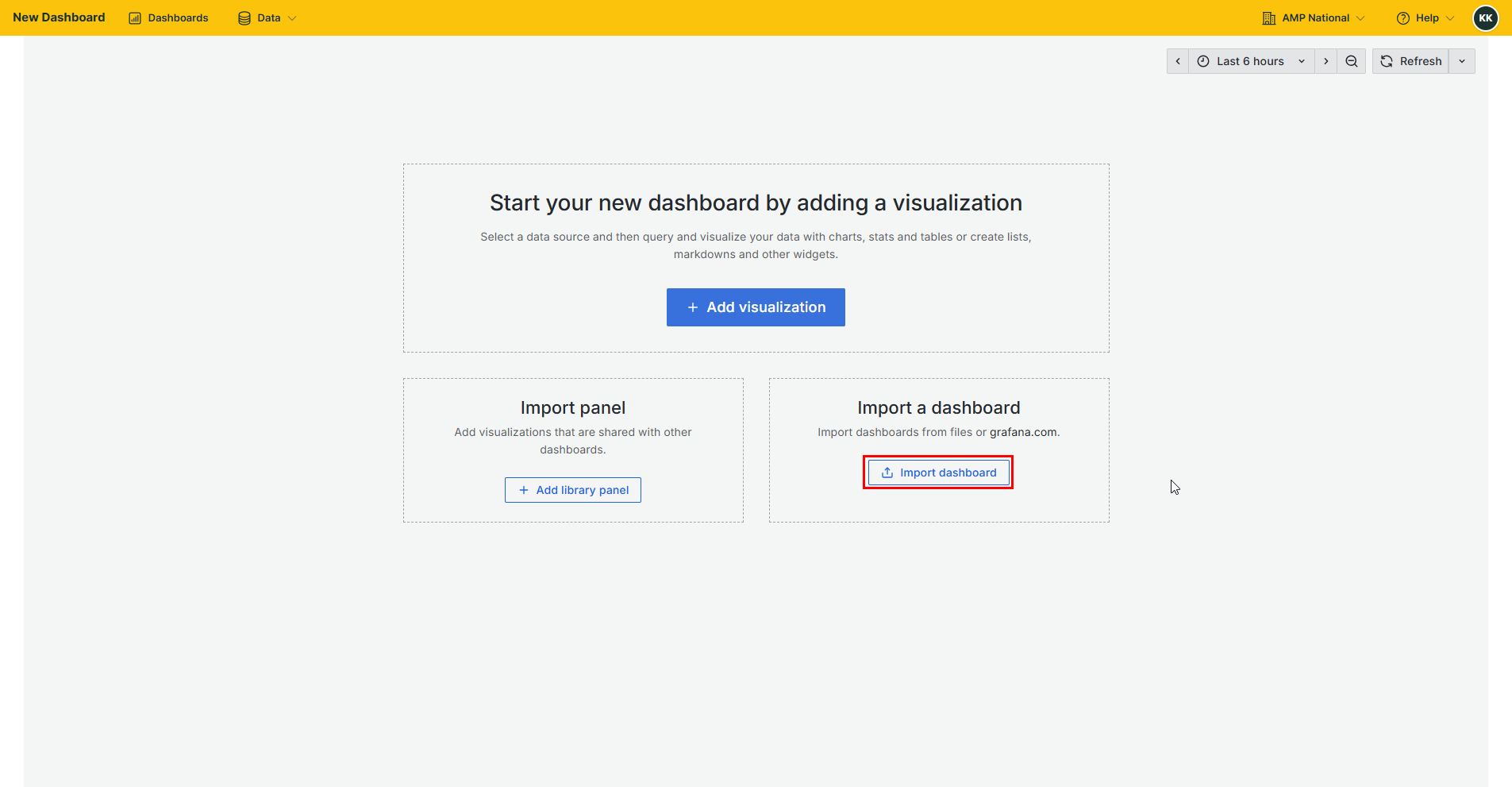
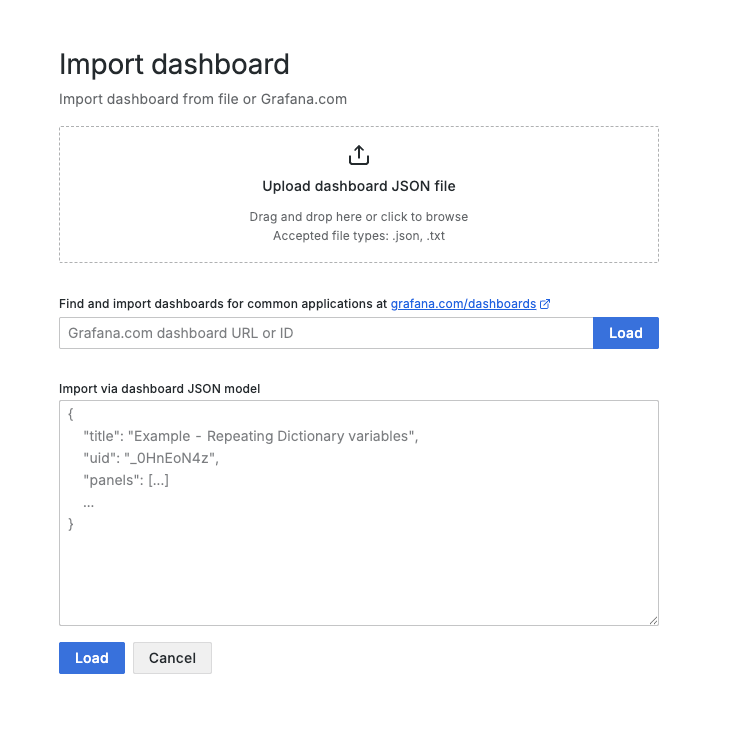
Provide the JSON file of the dashboard you wish to import and click
Load.
Hint
You can also import a dashboard by pasting the JSON code of the dashboard or by providing a link to the required dashboard.
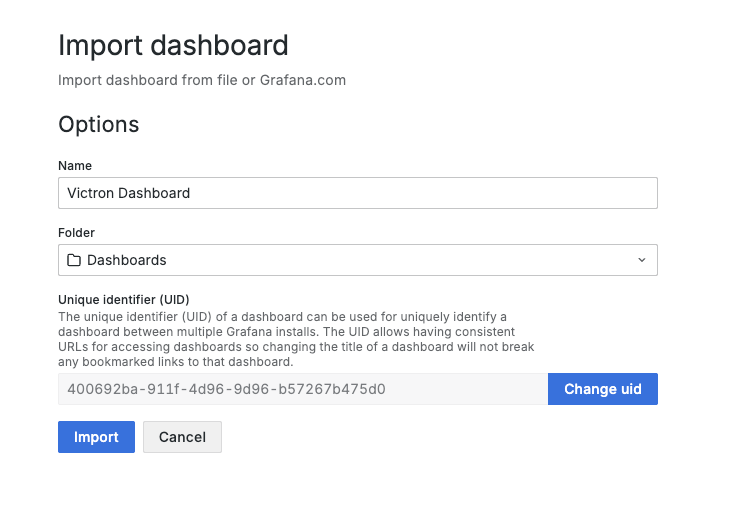
The system will verify the imported dashboard and lead you to a form where you can provide the more details of the dashbaord. On this page click
Import.
Warning
You may be required to update the data source of the imported dashboard if it does not match the database on your platform. Otherwise, the imported dashboard will not be able to run queries and visualize data.
The imported dashabord will be added to your platform and you will be able to view it.
Sharing a dashboard#
On the home page, click
Dashboardsto open the analytics page.
Select the dashboard that you wish to share.
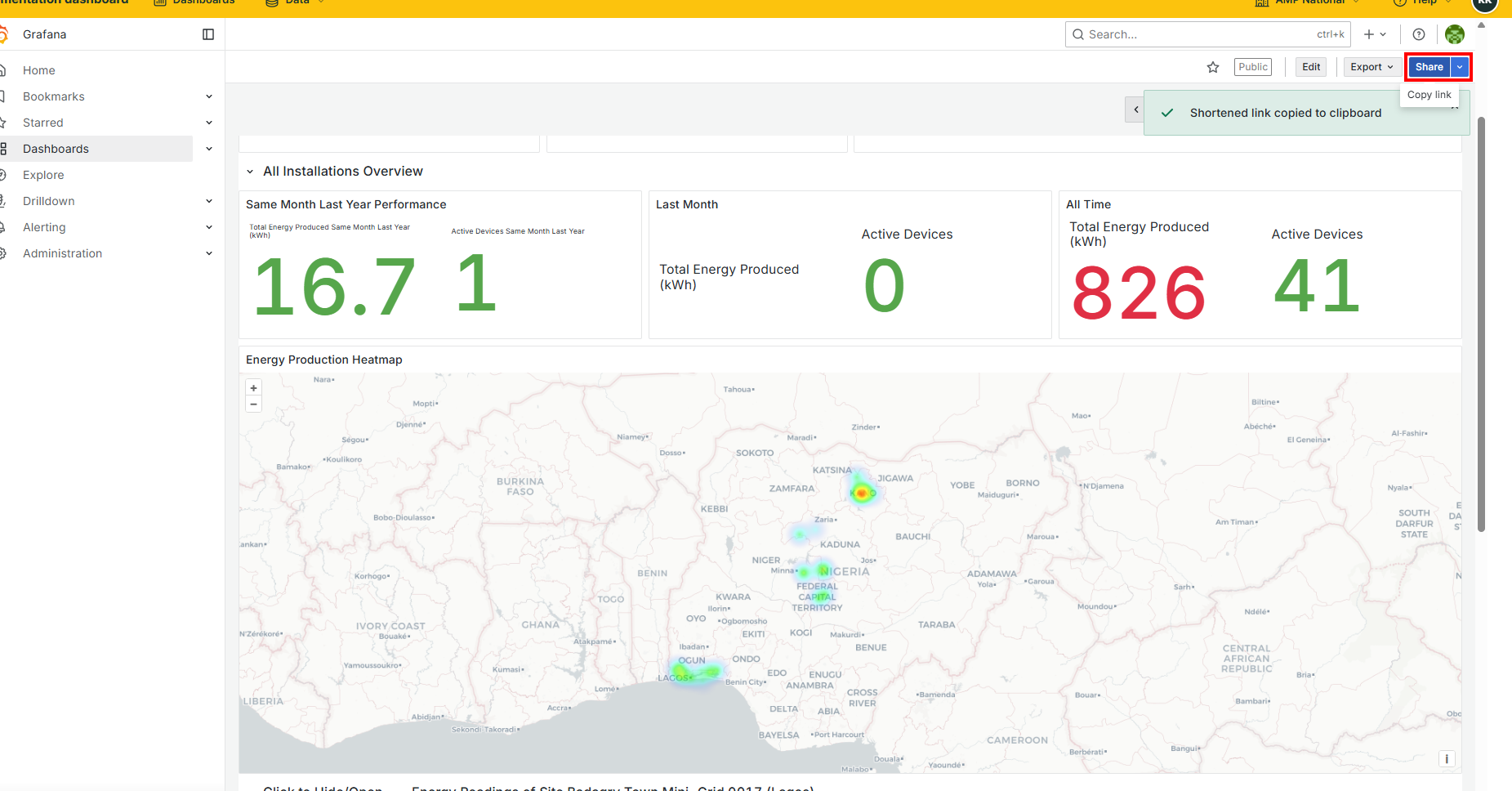
Click the
Sharebutton to get a shareable link.